Smart Reports and team access in DebugBundle Business
Automated engineering reports, AI summaries and organisation access in DebugBundle Business. Review incidents, analytics and health across projects.

By Owen Far
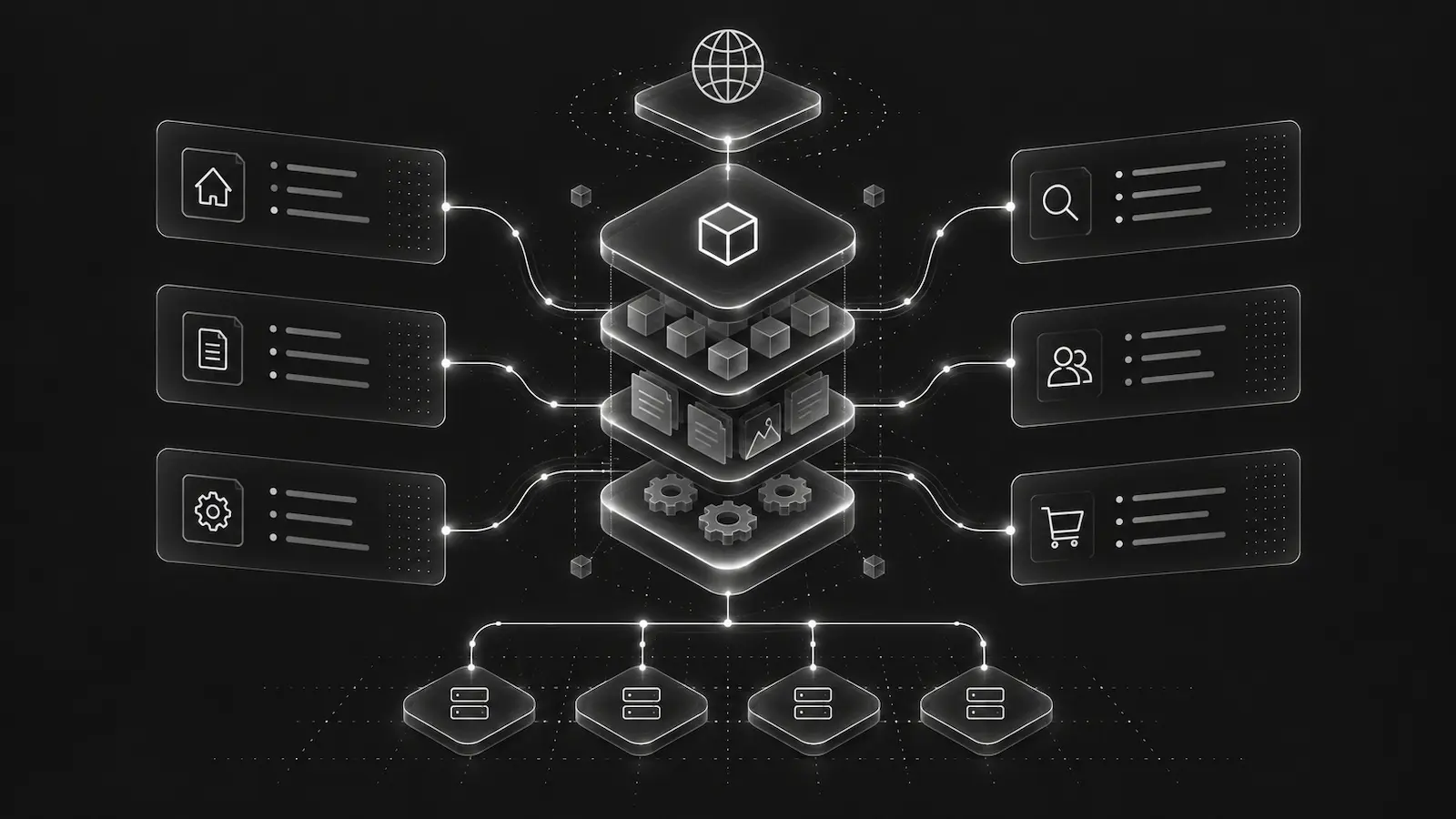
At the end of a week, you want to know what changed: which incidents were resolved, what came back, where users hit friction, and what still needs attention. When a product spans a website, an API and background workers, those answers can be spread across several projects.
DebugBundle Business now brings that evidence into scheduled Smart Reports, alongside organisation roles and scoped access for the people and agents working across those projects.
The aim is straightforward: make the weekly review easier to prepare, and make it clear who can see and act on the work behind it.
Automated engineering reports from recorded evidence
A useful engineering report should help you decide what to investigate next. Smart Reports bring together the evidence already retained in DebugBundle:
- recorded incident resolutions, reopened issues and improvement activity;
- high and critical issues that still need attention;
- observed health-check downtime and recovery;
- aggregate product analytics and available supporting context.
That gives a team a way to review reliability and product usage together. For example, a weekly report might include a recurring API incident, a recorded period of downtime and an analytics opportunity around checkout. Those observations can help focus an investigation. Establishing a connection between them still requires evidence.
Reports keep incomplete coverage visible. A quiet period with missing telemetry does not establish that the product was healthy, and an incident marked resolved is a recorded status change rather than proof that every affected flow has recovered.
The report can point you back to the underlying work, where a person or coding agent can inspect the relevant debug bundles and product analytics.
What AI adds to a Smart Report
Business Smart Reports use AI to explain the selected evidence and suggest priorities for investigation. Recorded facts and generated analysis remain distinct, so you can review the basis for a recommendation.
When validated AI analysis is unavailable, a report can remain factual-only and makes that state explicit. It does not present an unavailable analysis as a successful AI result.
You also choose how much context to include. Full mode uses bounded, redacted supporting evidence. Restricted mode limits the source context. Reporting requires explicit opt-in, and the selected projects' privacy settings continue to apply.
The resulting report is a starting point for a review. It does not change code, resolve incidents or carry out its recommendations.
Schedule reports across the projects you manage
Open Reports in the selected organisation to create a report:
- Select the projects to include.
- Choose a daily, weekly or monthly cadence, with a delivery time and timezone.
- Review the evidence mode and AI disclosure, then explicitly enable reporting.
- Choose verified recipients who have access to every included project, and save.
You can also turn off automatic generation and run a report manually. Existing weekly digests keep their settings; if the two overlap, choose whether you want both.
Business includes five saved report definitions and 40 generations per monthly allowance. Each definition can cover up to ten projects and ten verified recipients. Manual, scheduled and regenerated reports share that allowance, and additional capacity does not increase it.
A weekly engineering report can cover the last completed Monday–Sunday period, while a monthly report gives a broader view. Delivery follows your chosen local time; the analysis periods use complete UTC days, weeks or months.
The in-app report, downloadable PDF and email overview use the same saved report content. Opening an existing report or preparing its PDF does not run AI again. Downloads remain authenticated, and recipients must retain access to the report's complete scope.
See the Smart Reports guide for setup, allowance and delivery details.
Manage organisation access in one place
Reporting across projects is more useful when the team's access reflects how it works. Business adds organisation roles and a People page that brings organisation members, direct project collaborators and pending invitations together.
The roles have defined responsibilities:
| Organisation role | Access |
|---|---|
| Owner | Account ownership, billing and organisation administration. |
| Admin | Administration across current and future projects, without billing or ownership powers. Admins cannot manage the Owner or other organisation Admins. |
| Member | Access to explicitly selected projects, or an explicitly chosen Member or Viewer grant across current and future projects. |
Project-level Owner, Admin, Member and Viewer roles remain available. Viewer is read-only, so someone can inspect authorised evidence without receiving operational or administrative powers.
The People page shows where access comes from. Removing a direct project role can leave inherited organisation access in place; the UI makes that distinction visible. Existing project collaborators do not automatically gain organisation-wide access when an account upgrades.
Business supports up to 1,000 unique people without per-seat fees, including the Owner and pending invitations. You can also switch between organisations you belong to, and transfer ownership through a flow that requires the recipient to accept responsibility.
Give coding agents access that fits the task
A coding agent investigating one project rarely needs access to every project in the organisation. New scoped member tokens start with selected projects and read-only access. You can choose broader scope and permissions explicitly when the task needs them.
A token remains limited by its holder's current access. Existing legacy tokens do not silently gain new organisation-wide rights after an upgrade. Replacing one is a deliberate handover: create the replacement, update the CLI or MCP configuration, then revoke the old token when you are ready.
An authorised agent can also help configure Smart Reports through the ordinary CLI or MCP integration. For example:
Help me set up a weekly Smart Report for our website and API projects. Show me the selected projects, evidence mode, delivery time, recipients and remaining allowance. Ask me to confirm before enabling it, then read back the saved settings.
The connection needs administration rights for every included project and permission to make the change. The separate read-only DebugBundle/OpenAI connection cannot create or enable reports.
The token guide and MCP setup guide explain the available connection types.
Start with one useful report
Choose a small group of related projects and a cadence that fits an existing review. Read the first report alongside its source evidence, check the coverage, and use the findings to decide what deserves a closer look.
Business also includes monthly or annual billing and shared usage capacity. The pricing page has the current plan comparison, and the billing guide explains how those allowances work.
Start in Reports to configure the review, and use People from the account menu to check who should have access to the projects behind it.
Debug production errors with your AI agent
DebugBundle captures errors and their surrounding context in structured debug bundles, giving your coding agent the evidence to investigate.
Open source · Start free